---
title: How to create an assignemnt with QuestionWell AI | Step-by-Step Guide
description: Create interactive assignments in QuestionWell, track student progress in real-time, and easily export data to CSV without requiring personal information.
image: https://questionwell.org/hubfs/Screenshot%202025-03-10%20at%209.43.18%20PM.png
---
[Skip to content](https://questionwell.org/assign#main-content)
[.png?width=180&height=45&name=QW%20LOGO%20(2).png)](https://questionwell.org/?hsLang=en)
- [Home](https://questionwell.org/)
- [Product](https://questionwell.org/product)
- [Partners](https://questionwell.org/partnerships)
- [Research](https://questionwell.org/research)
- [FAQs](https://questionwell.org/faqs)
- [Pricing](http://app.questionwell.org/pricing)
- [Privacy](https://questionwell.org/privacy-policy)
- [Contact](https://questionwell.org/contact)
Open main navigation
Close main navigation
- [Home](https://questionwell.org/)
- [Product](https://questionwell.org/product)
- [Partners](https://questionwell.org/partnerships)
- [Research](https://questionwell.org/research)
- [FAQs](https://questionwell.org/faqs)
- [Pricing](http://app.questionwell.org/pricing)
- [Privacy](https://questionwell.org/privacy-policy)
- [Contact](https://questionwell.org/contact)
- [Login](https://app.questionwell.org/)
[Login](https://app.questionwell.org/)
# How (and Why) to Create an Assignment in QuestionWell
## Why?
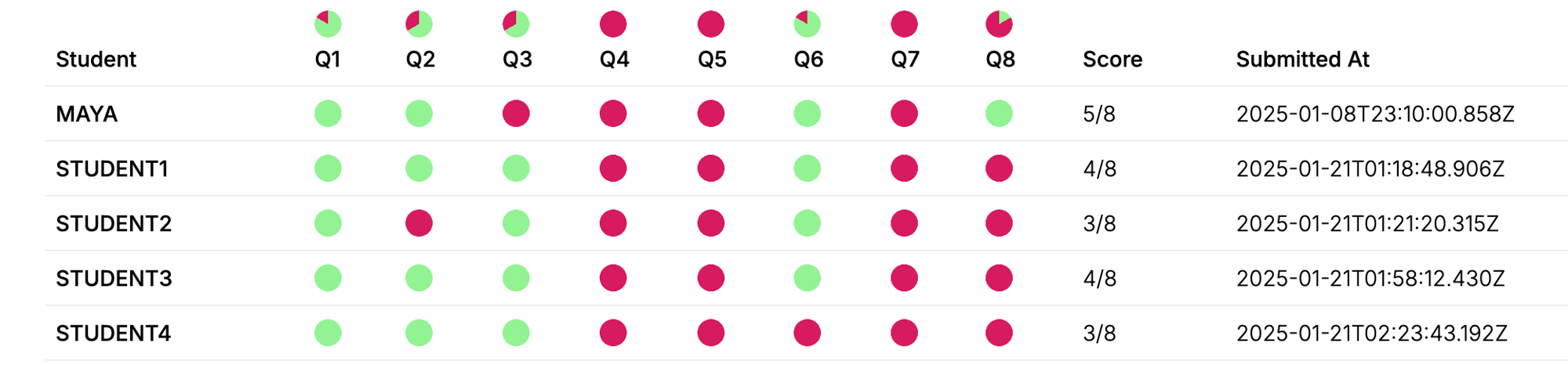
Easily create an interactive student experience that does *not* require students entering personal data but *does* give you a real-time dashboard of their progress which you can export to a CSV.
## How?
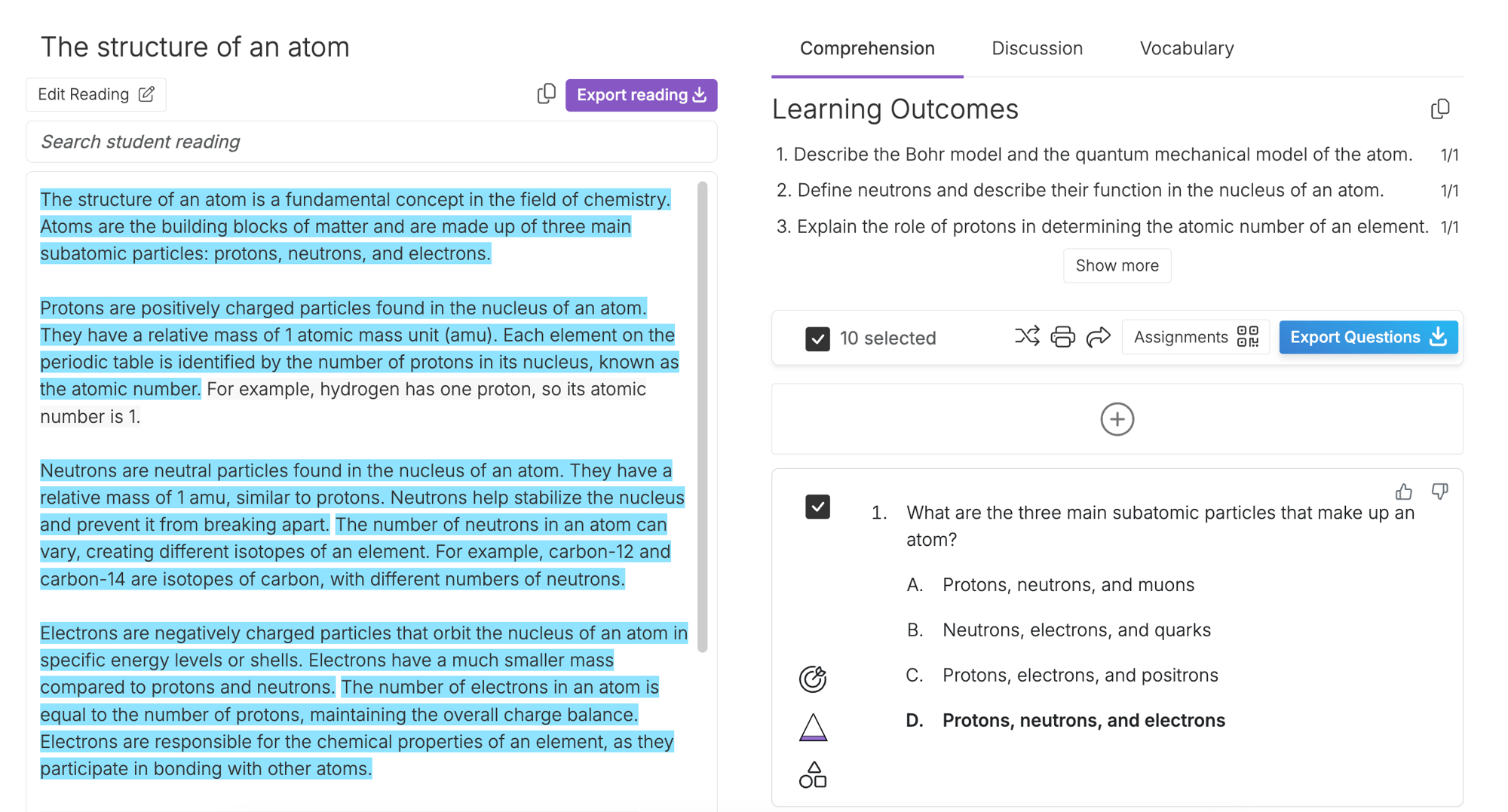
Start by clicking Export in the top right of the question selection page, under Learning Outcomes.
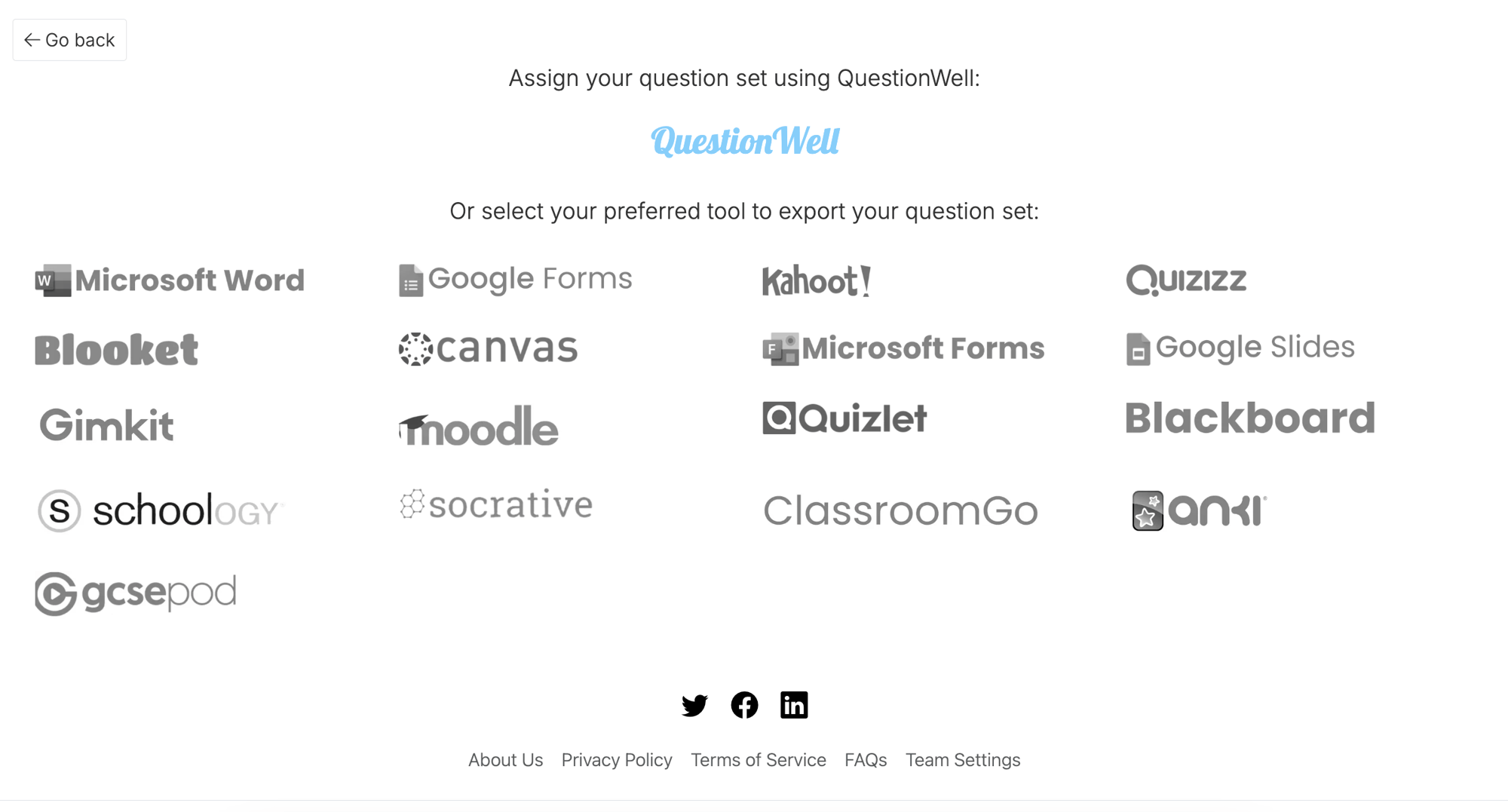
## Select QuestionWell at the top.
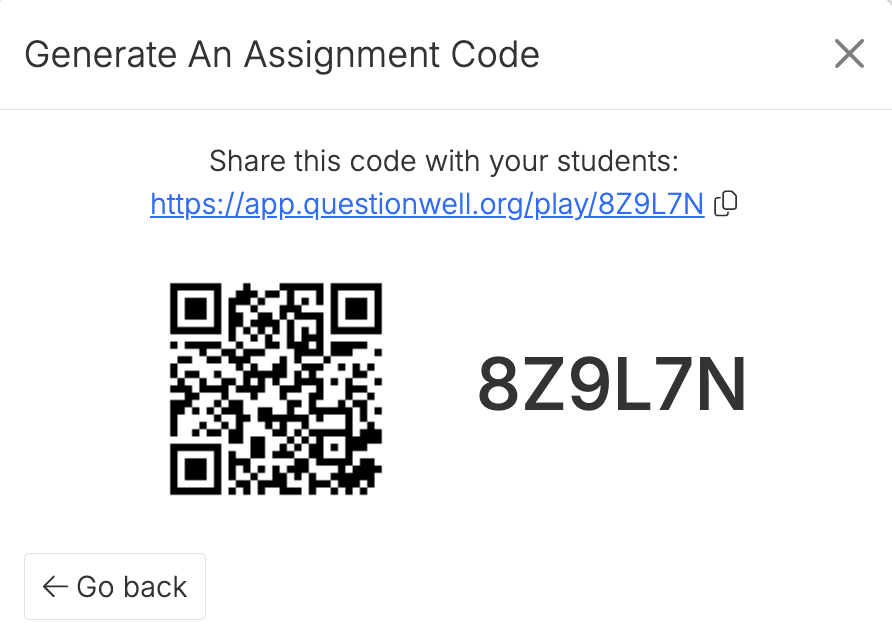
## Hit "Generate Code" and you will get a code.
## Then, you can:
1\. Have students scan the QR code
2\. Give students the link provided by copying it with the little copy icon.
3\. Tell students to enter the number/letter code at [app.questionwell.org/play](http://app.questionwell.org/play)

## They will be asked to enter a nickname. This should not be their real name but should be recognizable to you as the teacher. They cannot use spaces or lowercase.
## Click "History" in the top nav bar and then go to the "Assignments" tab. You will see the assignment you just created, along with its code.


## Click on the Assignment you'd like to see the real time dashboard of. It will take you to the dashboard!
## (If students have not logged in yet it will take you to a page with the sharing options.)
## Click "Export to CSV" and open the file in Google Sheets or Numbers.
.png?width=1000&height=248&name=QW%20LOGO%20(2).png "QW LOGO (2)")
[Terms of Service](https://questionwell.org/terms-of-service?hsLang=en)
[Privacy Policy](https://questionwell.org/privacy-policy?hsLang=en)
[FAQs](https://questionwell.org/faqs?hsLang=en)
[Contact Us](https://questionwell.org/contact?hsLang=en)